Gateways
Gateways are generally not visible on the DASS and are visible only via the NST. However, it is possible to assign specific gateway to some accounts. This is typically used when the account holder owns some gateways, and the operator can grant access to see the status of those gateways.
NOTE - only accounts that have rights to own gateways will have the “Gateways” menu. For accounts without this right, the Gateways menu remains hidden and inaccessible.
To see the gateway status, select Gateways on the menu. The Gateways view shows the list of gateways assigned to the account, as seen in the picture below.
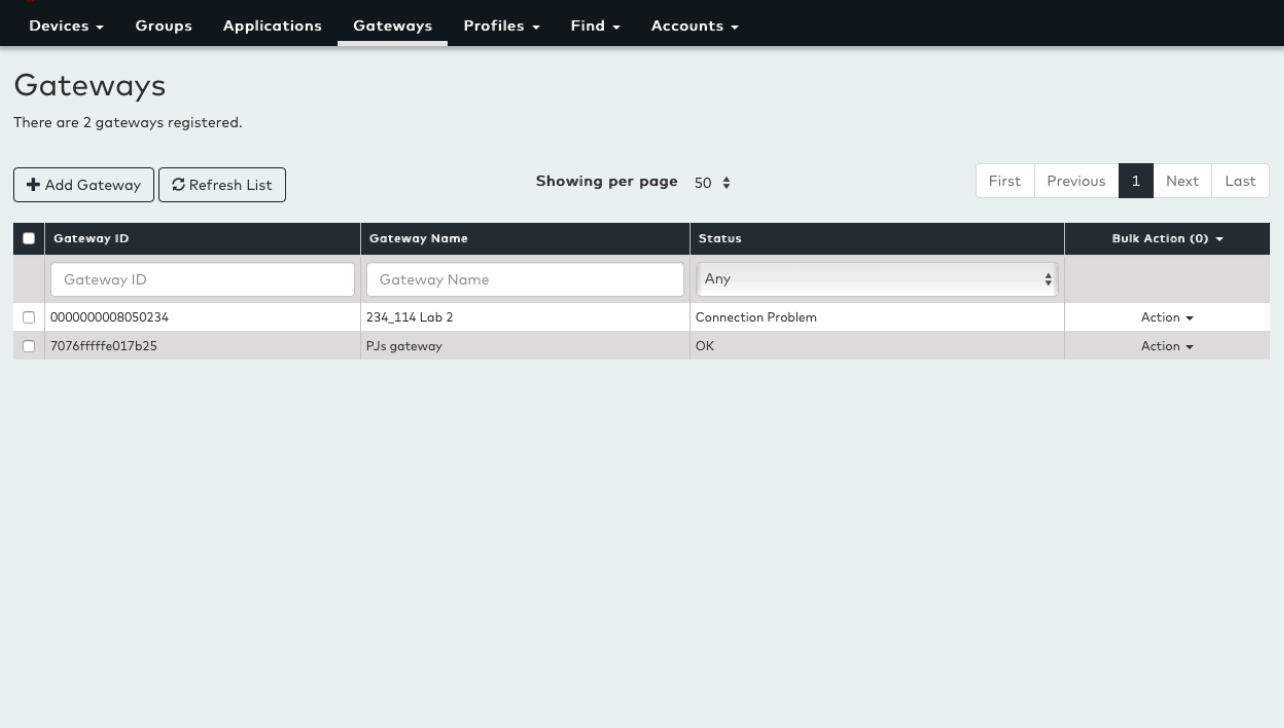
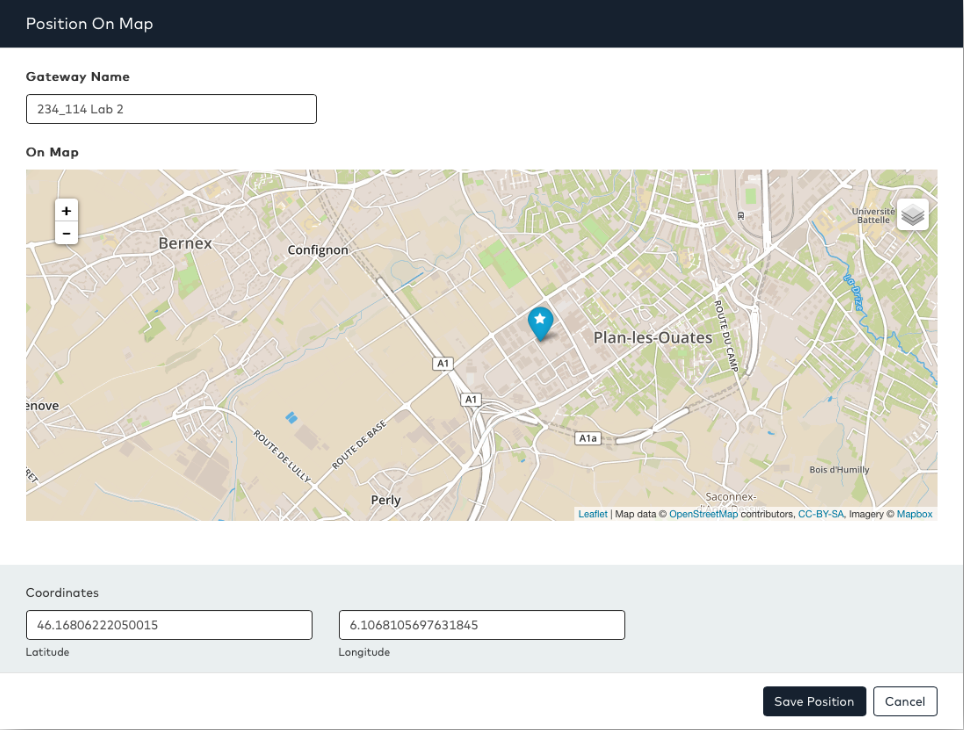
The list shows only the ID, name and the status of the gateway. From the actions menu on the right, more details on the gateway can be seen by pressing “View Gateway”. This will open a popup window showing the location of the gateway as shown in the picture below:
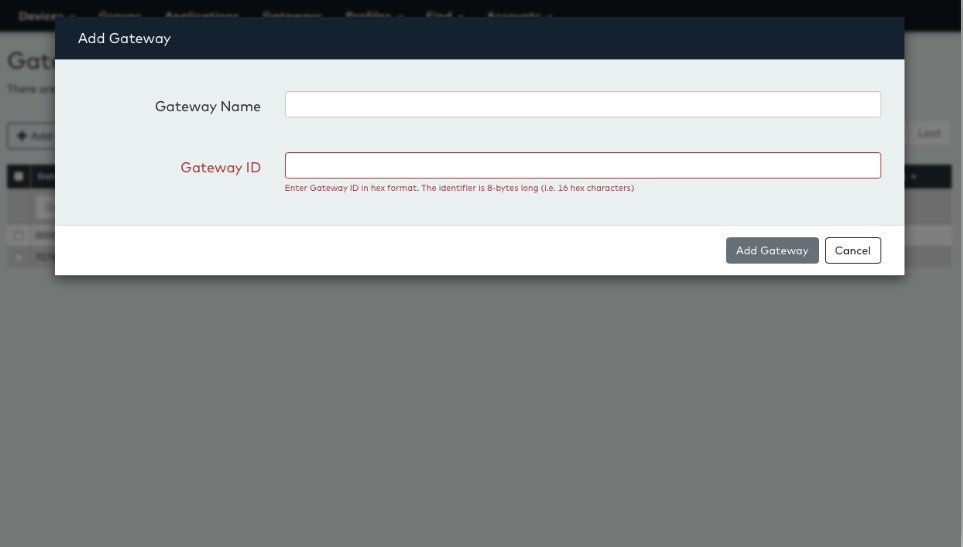
Gateways can be added to the account via the Add Gateway window. To access, choose the “Add Gateway” button on the top of the view. Then enter the gateway full 64-bit EUI. This value can be seen from the NST. The Add Gateways button is only visible for accounts having rights to add gateways. Typically, only an administrator adds gateways.